daisyUI Avatar Component for Vue.js

daisyUI Avatar Component for Vue.js
Let's look at how to create a daisyUI Avatar Component in Vue.js. If your website or application has user's then Avatar's will almost certainly make up an important part of the UI. They are very handy for displaying a user's profile picture in various situations.
The daisyUI docs provide a great starting point for an avatar component. However at the moment they don't have an avatar component that we can copy and paste directly into Vue.js. Luckily we can easily do this ourselves. This guide is suitable for any Vue.js project, whether this is Nuxt 2, Nuxt 3, Laravel + Inertia.js + Vue.js or anything else using Vue!

Before you create your daisyUI avatar component
Before we create our checkbox component we need to make sure our project is set up to use daisyUI. We need to have installed TailwindCSS and daisyUI. Instructions on installing Tailwind can be found on the TailwindCSS website. Instructions on how to install daisyUI can be found in the daisyUI docs.
Once you have installed both TailwindCSS and daisyUI in your Vue.js project you are ready to create your daisyUI avatar component.
Create daisyUI Avatar component in Vuejs
We can now create our avatar component. In your components folder, create a new file named Avatar.vue. Paste the code below into your newly created Avatar.vue file.
<template>

    <div class="avatar">
        <div class="w-24 rounded">
            <img :src="imgSrc" />
        </div>
    </div>
</template>

<script setup>
const props = defineProps({
    imgSrc: String
})
</script>
Different daisyUI avatar styles
There are many different avatar components to choose from in the daisyUI docs. Avatar's with different border radius and different shapes. You can have rings, or have groups of them.
It doesn't matter which style you choose, the concept of converting it to a re-useable Vue.js component is exactly the same. The example above is a pretty standard avatar.
Avatar.vue code explained
The Avatar.vue component above takes one prop named imgSrc. This prop is the image src that we will pass from the parent component.
Use the daisyUI Avatar component in your parent component
Now we have created our avatar component, we can use it in other components. This is simple to do. See the example below:
// Parent component
<template>

    <div>
        <Avatar :imgSrc="imgSrc" />
    </div>

</template>

<script setup>

import imgSrc from '../assets/your-image.jpg'

</script>
I am using Nuxt in this example. I therefore do not need to import the Avatar.vue component. If you are not using Nuxt, you will almost certainly need to import the Avatar.vue component into your parent component.
Parent component code explained
The above code in the parent component outputs the Avatar.vue component. We import our image from the assets folder. This is then passed to the Avatar component, allowing us to access the image src in our parent component.
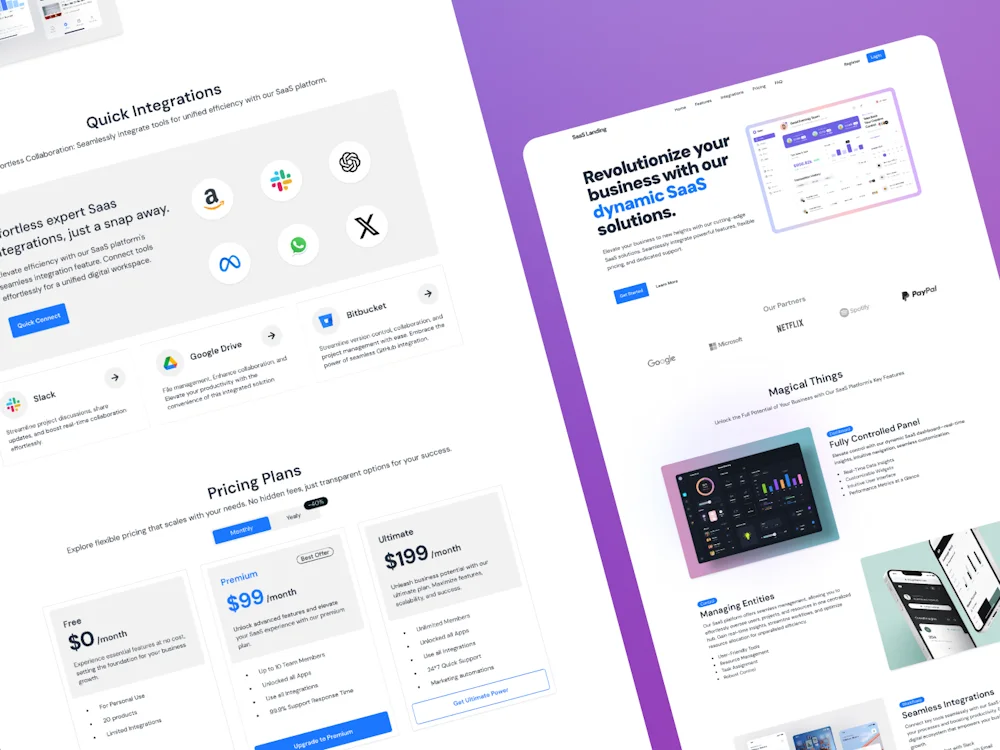
daisyUI now has templates!
Why should we make our Avatar component re-useable in Vue?
By making our Avatar component re-useable we save ourselves time in the future and make our lives easier. Whenever we need an avatar we can simply reuse the one we created. This means we don't need to create a new one each time. And more importantly, if we want to change anything, such as the border radius or ring, we only need to do it in one place.
This is an older tutorial from my coding days.
These days I write about building an online business with Skool. Here's how I'm doing it.